


Automatic Shutdown Protection
Protect your Mac and network devices by triggering safe shutdowns when UPS battery drops below a threshold.
How Power Guard works
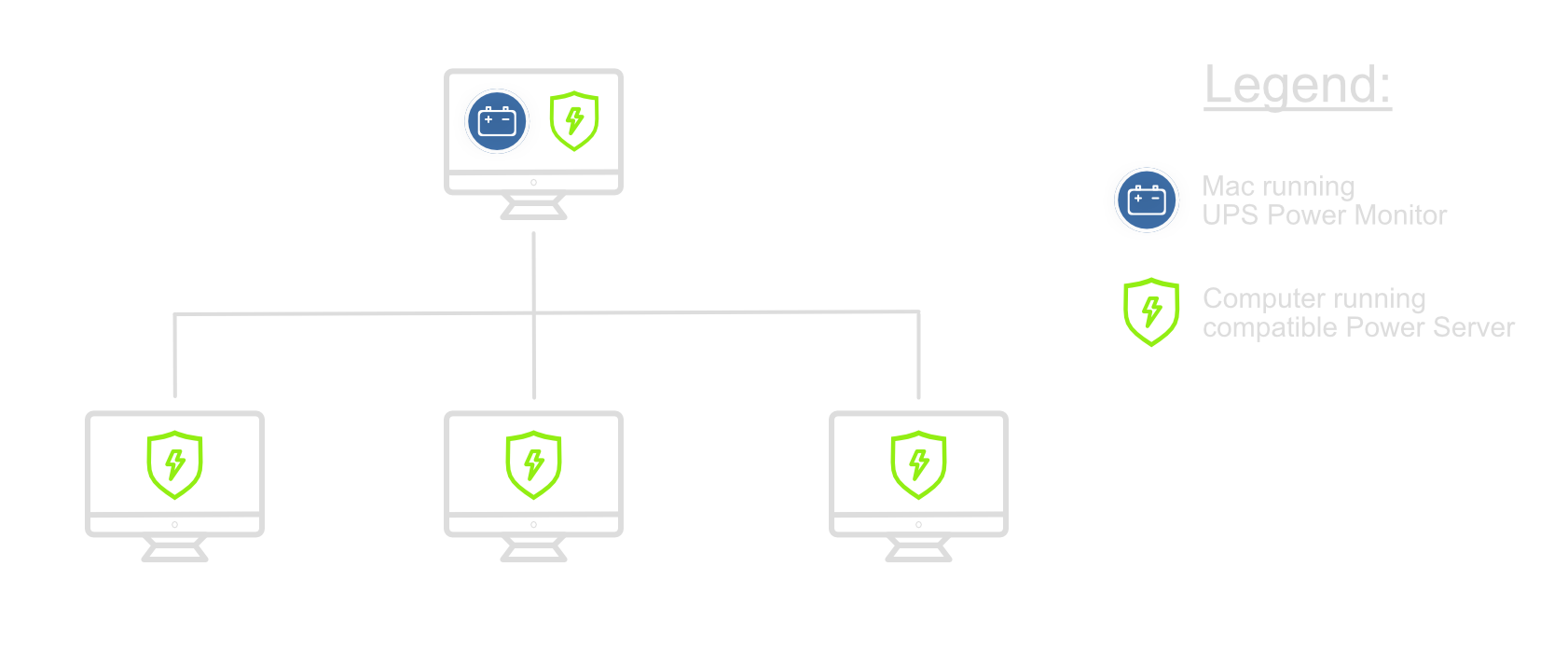
UPS Power Monitor needs a compatible Power Server helper to trigger a shutdown on the protected machine. The helper can run on the same Mac you want to protect or on another Mac in the same local network.
macOS Installation
Follow the steps below to install Power Server with the UPS Power Server Manager app and configure device protection in UPS Power Monitor.
Step 1: Install Power Server Manager
Download the free UPS Power Server Manager disk image, open it, then launch the app on the Mac you want Power Guard to shut down. The app installs the bundled helper and verifies it's running.
Download UPS Power Server Manager

For most setups, choose Local only, keep the default port 58879, and click Install. When the app reports Running, Step 1 is done.

Other modes (Remote, Forced)
- Local — reachable only from the same Mac. Use localhost or 127.0.0.1 in Step 2.
- Remote — reachable from other Macs on the local network. Only use this on a trusted network and block untrusted access at the firewall.
- Graceful — shuts down via Finder, allowing apps to prompt for unsaved changes.
- Forced — runs sudo shutdown -h now immediately. Requires the sudoers change shown by UPS Power Server Manager.
Advanced alternative: install Power Server with shell scripts
UPS Power Server Manager is the recommended installer because it bundles the helper scripts and verifies the installation. For full transparency, the original open-source shell installers remain available for manual setup.
Choose the script that matches the same access and shutdown behavior:
Local + Graceful
/bin/bash -c \
"$(curl -fsSL https://raw.githubusercontent.com/dniklewicz/UPSPowerHelper/master/install_mac_localonly.sh)"
Remote + Graceful
/bin/bash -c \
"$(curl -fsSL https://raw.githubusercontent.com/dniklewicz/UPSPowerHelper/master/install_mac_remote.sh)"
Local + Forced
/bin/bash -c \
"$(curl -fsSL https://raw.githubusercontent.com/dniklewicz/UPSPowerHelper/master/install_mac_localonly_forced.sh)"
Remote + Forced
/bin/bash -c \
"$(curl -fsSL https://raw.githubusercontent.com/dniklewicz/UPSPowerHelper/master/install_mac_remote_forced.sh)"
Forced modes require passwordless sudo for /sbin/shutdown. Add a narrow sudoers rule with sudo visudo:
ALL ALL = NOPASSWD: /sbin/shutdown
Remote modes bind to the local network and accept unauthenticated shutdown requests. Use them only on a trusted network and block untrusted access at the firewall.
Uninstall script-based setup
/bin/bash -c \
"$(curl -fsSL https://raw.githubusercontent.com/dniklewicz/UPSPowerHelper/master/uninstall_mac.sh)"
Step 2: Set up protection in UPS Power Monitor

- Select a UPS from the list.
- Click Add first device.
- Provide protected device data:
- Device name — any friendly name.
- IP Address — use localhost or 127.0.0.1 for local protection.
- Port — Power Server listening port, default 58879.
- Click Save.
- Wait for the green shield icon. Your Mac is now protected.
How to uninstall Power Server?
Open UPS Power Server Manager and click Uninstall. The app removes the helper files, LaunchAgent, and logs for the current user.
Can I protect my Mac with just UPS Power Monitor?
No. UPS Power Monitor cannot shut down your Mac without a compatible Power Server helper tool.
Still need help? Contact Support.